Help
Room Navigation
To navigate around the exhibition. Please hold down your left mouse button anywhere on the screen, and drag the mouse to rotate around the room.

1 - To show the help window.

2 - To disable / enable the automatic spin around of the room please click the pause button.

3 - To disable / enable the fullscreen of the room please click the fullscreen button.

4 - Clicking on the client's logo located in the top left of the screen will take you to the exhibition's project website.

5 - To open a piece of content, move your mouse to one of the buttons within the exhibition, you should notice a change in the button's colour when your mouse hovers over. Left clicking when your mouse is above the button should open the relevant content associated with the button.

6 - If the exhibition includes a live chat feature, you can access it by clicking the button, a popup should appear which will outline times and dates of the live chat events.

Some buttons will do other things rather than opening a piece of content - some may be links, or videos, or continuing to a different section of the exhibition all together. The icons on the buttons give an indication of what type of content you'll be encountering.
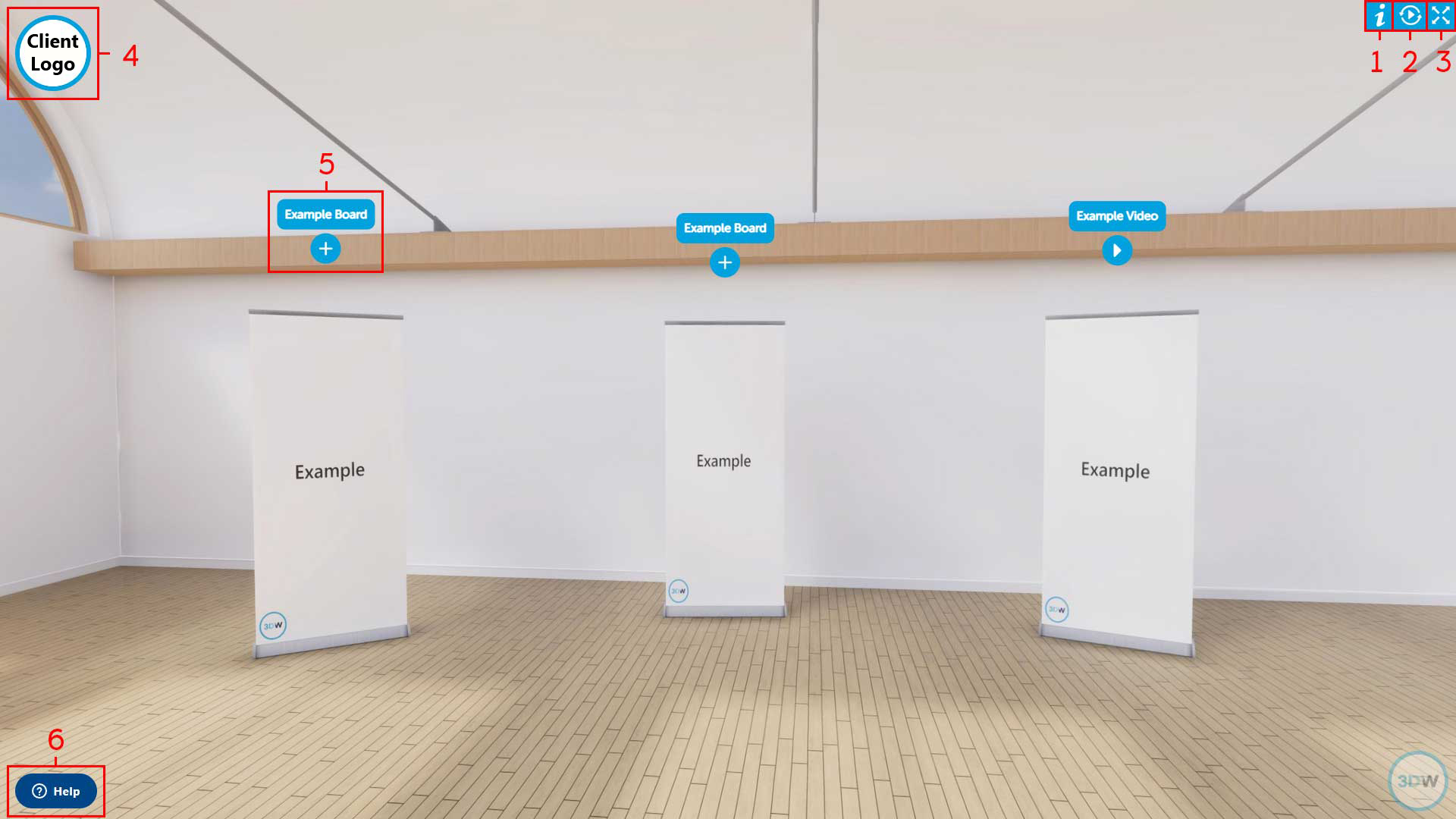
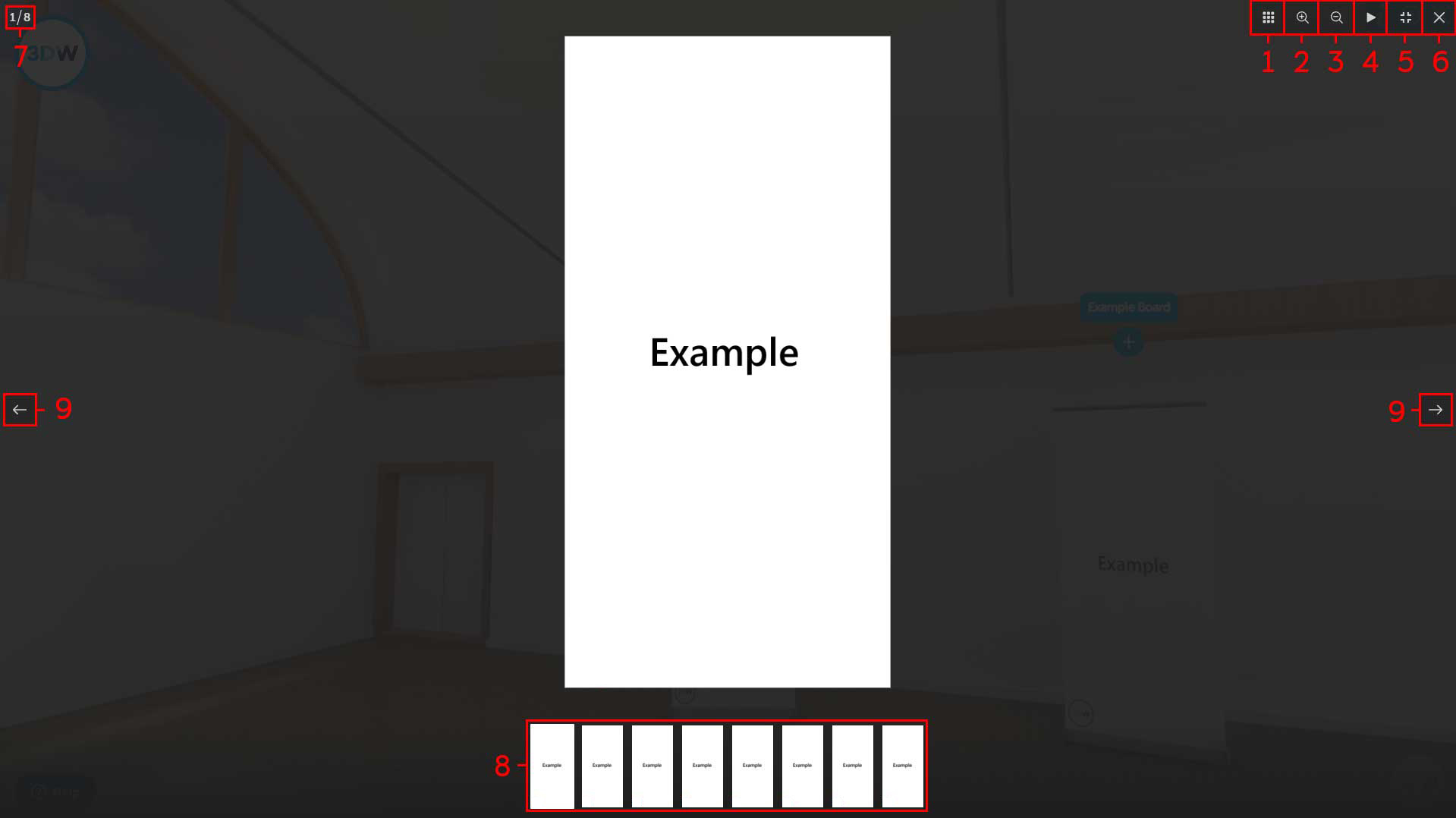
Image Navigation
1 - This button enables / disables the thumbnails at the bottom of the screen.

2 - This button zooms into the content on the screen, alternatively, clicking anywhere on the currently viewed board will zoom in.

3 - This button zooms out of the content on the screen. Clicking on the content will zoom out gradually.

4 - This button enables / disables the slideshow feature which automatically scrolls the content that is visable under the current selected button. The thumbnails of which should be visible at the bottom of the screen.

5 - This button enables / disables fullscreen of the current content.

6 - This button closes the current content and returns you to the exhibition room. Left clicking anywhere off the content will also return you to the room.

7 - This button shows how many pieces of content are contained under the current button, and which one you are viewing.

8 - This area is where the thumbnails for each piece of content contained under the current button are displayed. Clicking on any of these thumbnails will take you to them to view.

9 - If there are multiple pieces of content under the current button, these two buttons will also take you to the next / previous piece of content.
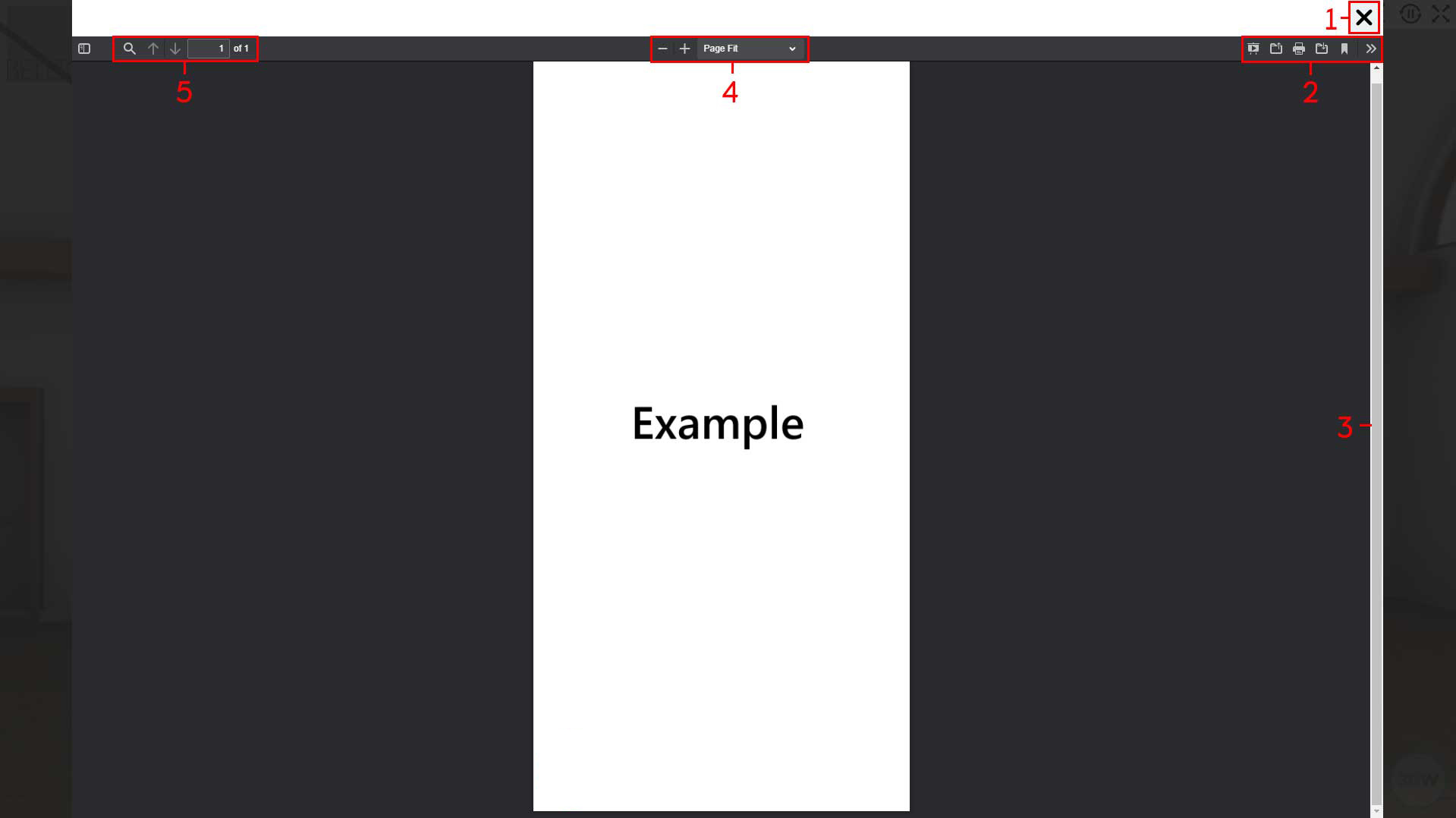
PDF Navigation
1 - This button closes the PDF and returns you to the room.

2 - These buttons allow you to enter different viewing modes. print the pdf, or download the pdf to your machine.

3 - This scroll bar allows you to go up and down through the document, if there are multiple boards in the PDF you can scroll between the boards from here.

4 - These buttons control the zoom options for the pdf.

5 - These buttons also control which page you are on in the pdf and can use the buttons to go between pages quickly.
Video Navigation
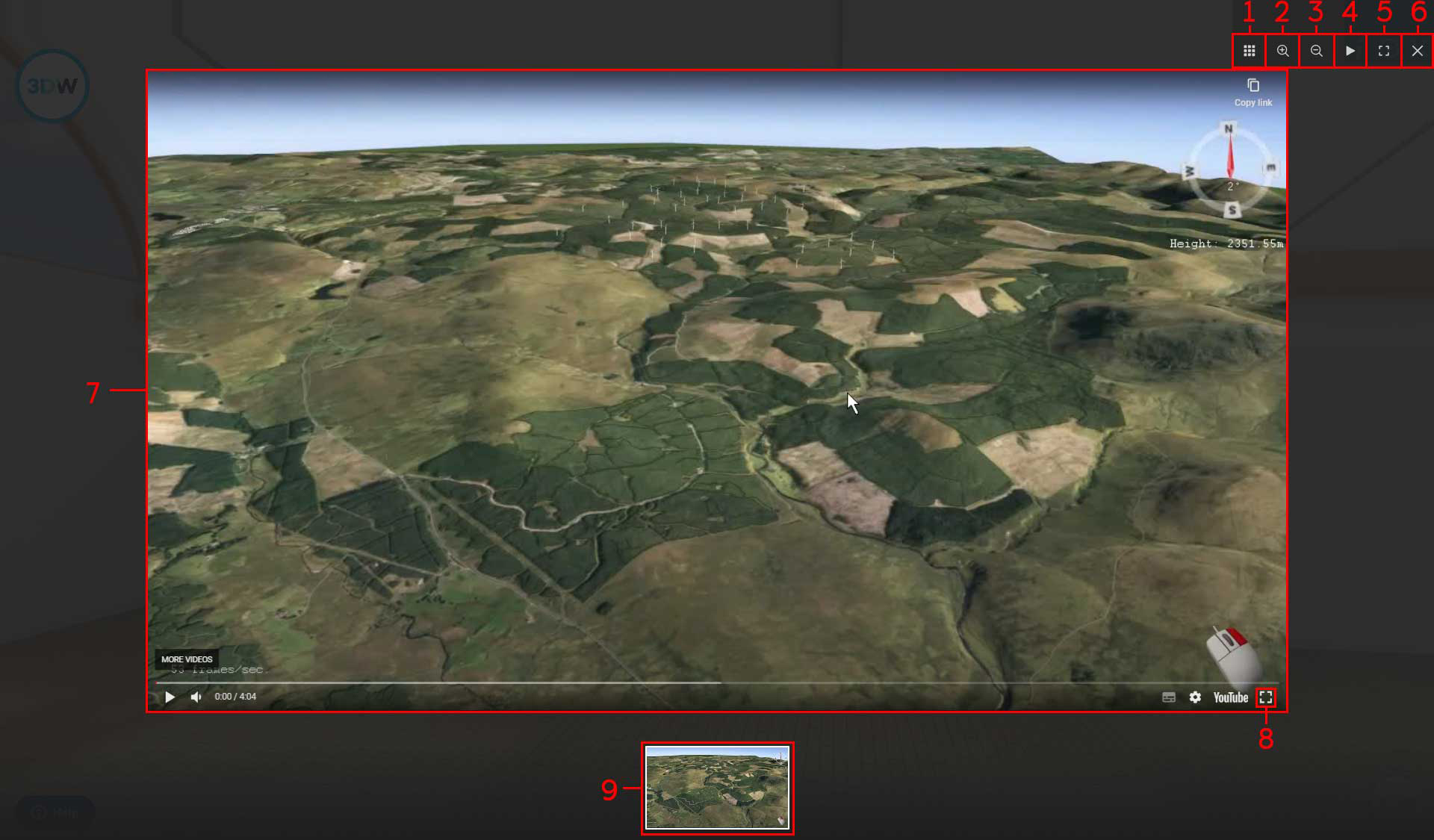
1 - This button enables / disables the thumbnails at the bottom of the screen.

2 - This button zooms into the content on the screen, alternatively, clicking anywhere on the currently viewed board will zoom in.

3 - This button zooms out of the content on the screen. Clicking on the content will zoom out gradually.

4 - This button enables / disables the slideshow feature which automatically scrolls the content that is visable under the current selected button. The thumbnails of which should be visible at the bottom of the screen.

5 - This button enables / disables fullscreen of the current content. This will not fullscreen the video - please see point 8 to fullscreen the video.

6 - This button closes the current content and returns you to the exhibition room. Left clicking anywhere off the content will also return you to the room.

7 - This area is the video player, when you first open this piece of content, left clicking within this space will begin playing the video.

8 - Once the video player has begun playing the video, you should see this button - this will fullscreen the video, pressing the button again in the bottom right will end the fullscreen.

9 - This area contains the thumbnails for the videos, if there are multiple videos under one button you will see them here, clicking on them will take you to them to play.
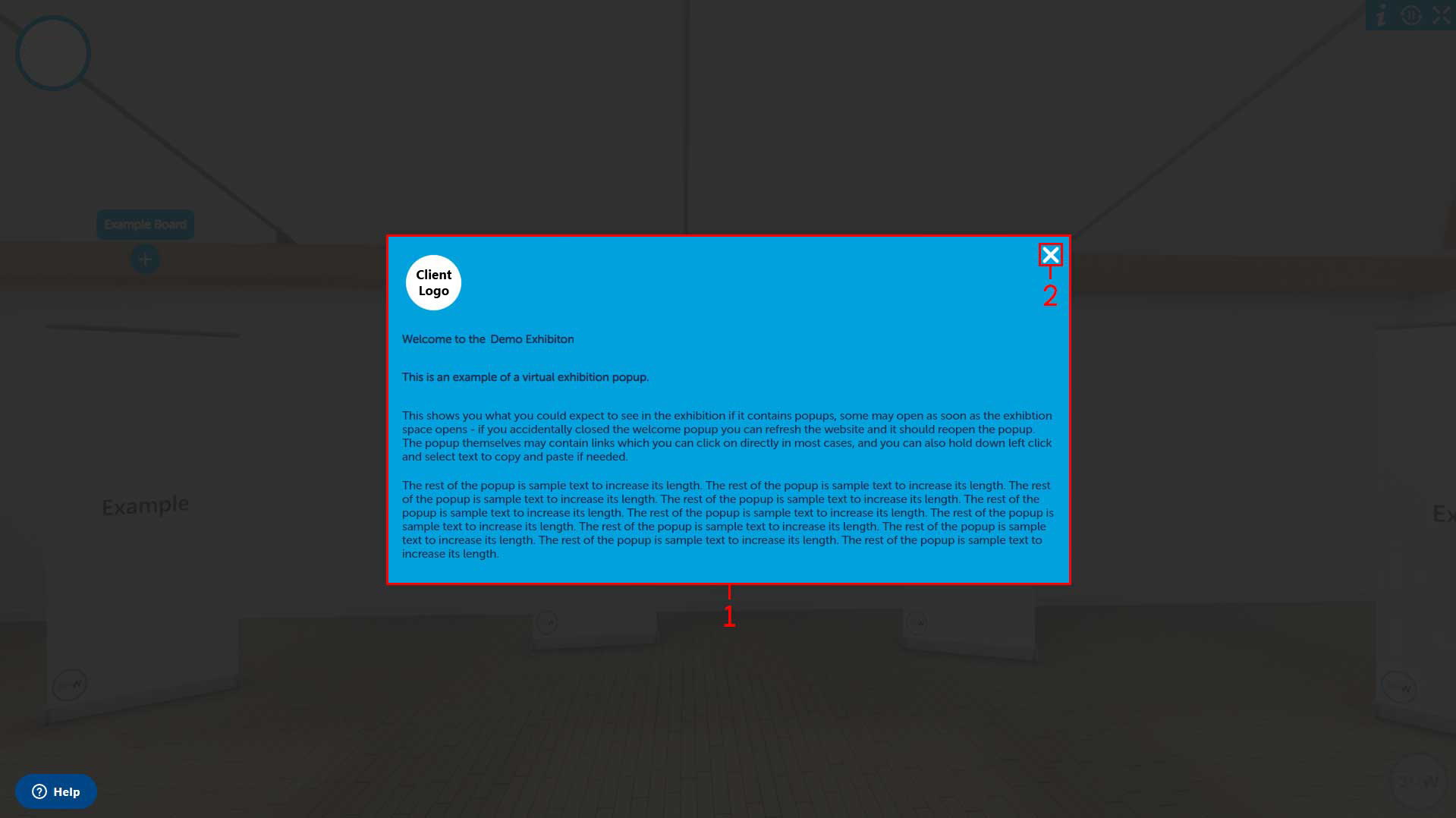
Popup Navigation
1 - This area contains the popup, within it there may be links or emails which you can directly copy and paste, or in the case of links, click on and be directed to the relevant site. Clicking on the screen outside of this area will close the popup.

2 - This button will close the popup, you should notice it change colour when you hover your mouse over it.